11. Real-Time Image Classification Tool
This tool is designed for rapid manual screening of massive amounts of industrial data. It supports millisecond-level classification and filing via keyboard shortcuts while you browse the images.
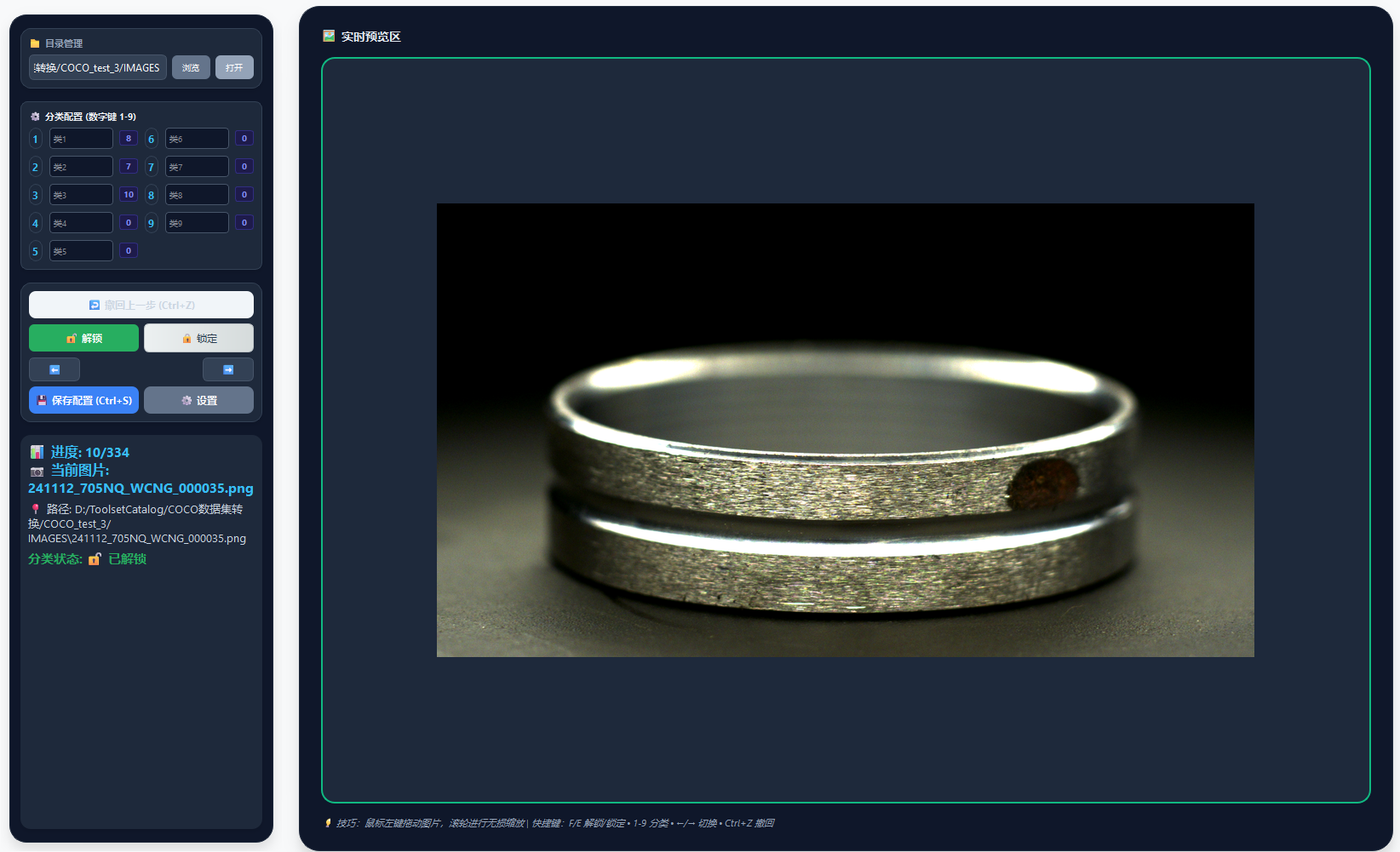
1. Quick Start Workflow
To prevent misoperation, the classification function is locked by default:
- Import a directory: Select the folder containing the images to be classified.
- Unlock the function: Press the [F] key on the keyboard (or click the unlock button in the interface); the classification logic then takes effect.
- Browse images: Use the arrow keys [←] and [→] to switch quickly to the previous or next image.
2. Quick Classification Logic (1~9 number keys)
The system provides 9 preset classification folders, mapped to the number keys [1] - [9] on the keyboard:
- One-key filing: Pressing a number key (for example
1) immediately moves the currently displayed image into the corresponding classification folder (such asCLASS_1). - Folder naming: The default name is
CLASS_<number>. - Custom names: Class names can be modified manually; after clicking save, your custom configuration is loaded automatically the next time the software is opened.
- Live counting: The interface counts and displays in real time the number of images in each classification folder, making it easy to track the screening progress.
3. Fault Tolerance and Recovery
- Undo operation: If you press the wrong number key by mistake and misclassify an image, you can use the undo function, which automatically returns the image from the classification folder to its original directory.
- Automatic progress memory: The system records the current screening position in real time.
- Resume from breakpoint: If the software is closed midway, the next time the same directory is opened, the system will automatically ask whether to continue from the position where it was interrupted.
4. Visual Assistance Settings
In the "Settings" panel, you can enable the [Remember image zoom position] function:
- Behavior: Once enabled, your zoom ratio and pan offset on the current image are locked in place.
- Use case: When you need to inspect the same local region on multiple items in a row (for example, checking specifically for edge burrs), this function ensures that every newly loaded image is positioned at exactly the same coordinates, with no need to zoom manually each time.
5. Quick Reference Table
| Key | Description |
|---|---|
| F / E | Unlock / lock the classification function |
| ← / → | Switch to the previous / next image |
| 1 ~ 9 | Move the current image into the classification folder with the corresponding number |
| Ctrl + Z | Undo the last classification operation |
Development Recommendation
A classification operation is essentially the file system executing a Move command. To guarantee data safety in extreme cases, it is recommended that you back up the original dataset before classifying.